Cathy's Templates™

  • Home
  • About
  • Topics
  • _Media Kits
  • _Real Estate Marketing
  • Shop
  • Notebooks, Planners, & Journals
simple life notion dashboard planner that is easy to use for beginners


If you’ve ever been overwhelmed by Notion, you probably had the same reaction most people do:

“This looks amazing… but where do I even start?”

Notion is one of the most powerful productivity tools out there. You can build planners, track habits, manage finances, organize your entire life—all in one place. But that flexibility comes with a downside: it can feel overwhelming fast.

Instead of helping you get organized, it often leaves you staring at a blank page, unsure how to structure anything. Do you need databases? Linked views? A calendar? A dashboard? And once you start, how do you make everything actually work together?

Many users download Notion with the best intentions… and then never use it.

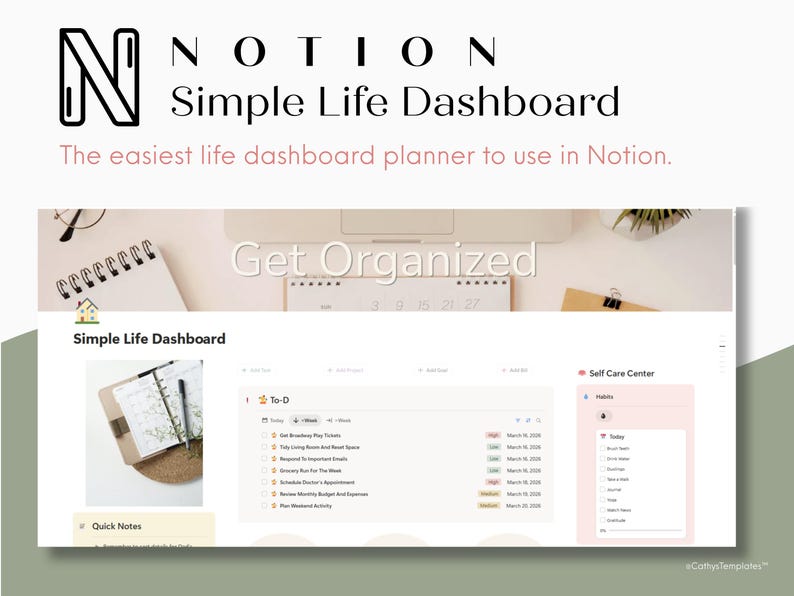
I created a Simple Life Notion Dashboard for beginners, and that’s exactly the problem this dashboard was designed to solve.

Instead of starting from scratch or trying to piece together complicated systems, this template gives you a simple, fully connected life dashboard that’s ready to use from day one. No confusion. No overthinking. Just a clean space to manage your tasks, habits, goals, and daily life—all in one place.

What Is a Notion Dashboard?


At its core, a Notion dashboard is a central hub where you organize and manage different areas of your life in one place. Instead of jumping between multiple apps for tasks, notes, calendars, and goals, everything lives inside one structured system.

According to Notion, the platform is designed to be an all-in-one workspace—meaning you can combine planning, tracking, and organization into a single, customizable setup.

A typical Notion dashboard might include:

  • A to-do list for daily tasks
  • A habit tracker to build routines
  • A calendar for scheduling
  • A place to store notes and ideas
  • Goal tracking systems

The idea is simple: one page that gives you a clear overview of your life.

But here’s where things get tricky.

Because Notion is so customizable, there’s no single “right” way to build a dashboard. You can create anything—but that also means you have to decide everything:

  • How to structure your pages
  • What systems to use
  • How everything connects

For beginners, especially, this can turn what should be a helpful tool into something confusing and time-consuming.

That’s why having a pre-built, thoughtfully designed dashboard makes such a big difference—it removes the guesswork and lets you focus on actually using the system instead of building it.

Why Notion Feels Hard to Use


Notion isn’t difficult because it’s poorly designed—it’s difficult because it gives you too much freedom without enough structure.

When you open a blank page, you’re not just writing a to-do list. You’re being asked to build a system:

  1. Should this be a simple list or a database?
  2. Do you need tags, priorities, or due dates?
  3. How will this connect to your calendar, goals, or habits?

Most people don’t have answers to those questions upfront. So instead of getting organized, they get stuck. Another challenge is how Notion’s core features work together. The real power of Notion comes from things like:

  • Databases
  • Linked views
  • Filters and relations

But those aren’t intuitive at first. You might create a task list, then realize later you want it connected to a calendar or a goal tracker—and suddenly you’re rebuilding everything from scratch. There’s also the issue of overbuilding. Many templates look impressive, but they include:

  • Too many sections
  • Unnecessary tracking systems
  • Layouts that look good but aren’t practical

That creates friction. And when something feels like work to maintain, people stop using it. The result is a pattern a lot of users fall into: Download Notion > try to set everything up > get overwhelmed > abandon it.

The problem isn’t motivation—it’s the lack of a clear, usable structure from the start.

The Solution: A Simple Life Dashboard for Beginners


The easiest way to not be overwhelmed by Notion and make it work isn’t to learn every feature—it’s to start with a system that already makes sense.

This dashboard was designed to remove the biggest friction points and replace them with something practical and easy to maintain. Instead of building from scratch, everything is already structured so you can focus on using it right away. And it comes with 8 pages of instructional documentation with everything you need to get started, customize, and maintain your Simple Life Notion Dashboard for beginners.
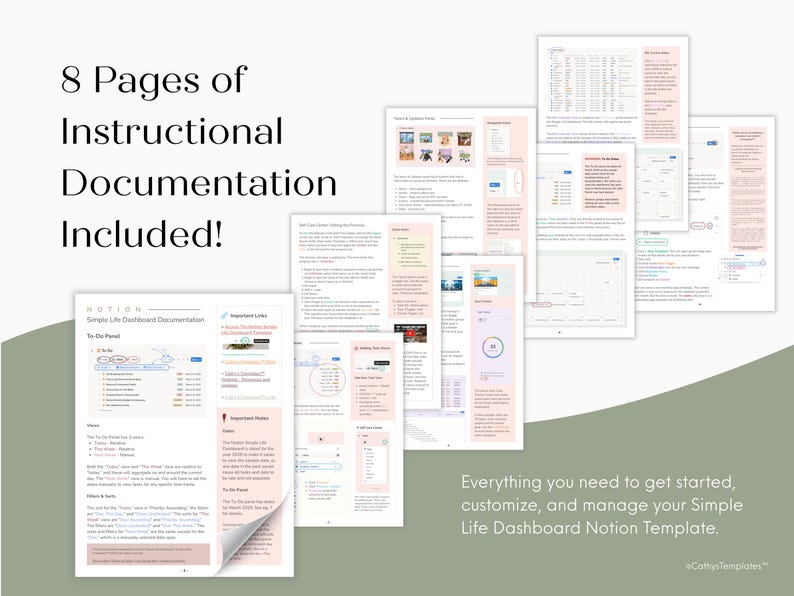

overwhelmed by notion? try this simple life dashboard for beginners comes with 8 pages of instructional documentation. 8 pages of documentation appear stacked against each other.


At its core, the system is built around how people actually manage their lives:

  • Daily Tasks That Are Clear And Actionable
  • Habits That Support Long-Term Consistency
  • Goals Broken Down Into Manageable Steps
  • Bills And Calendar Events That Stay Organized In One Place

Everything is connected, but not complicated. You’re not dealing with unnecessary layers or overly complex setups—just a clean system where each section serves a purpose.

Another key difference is that this dashboard avoids the “perfect productivity” trap. It’s not designed to track everything. It’s designed to track what actually matters. That makes it easier to stick with over time.

Key Features Breakdown
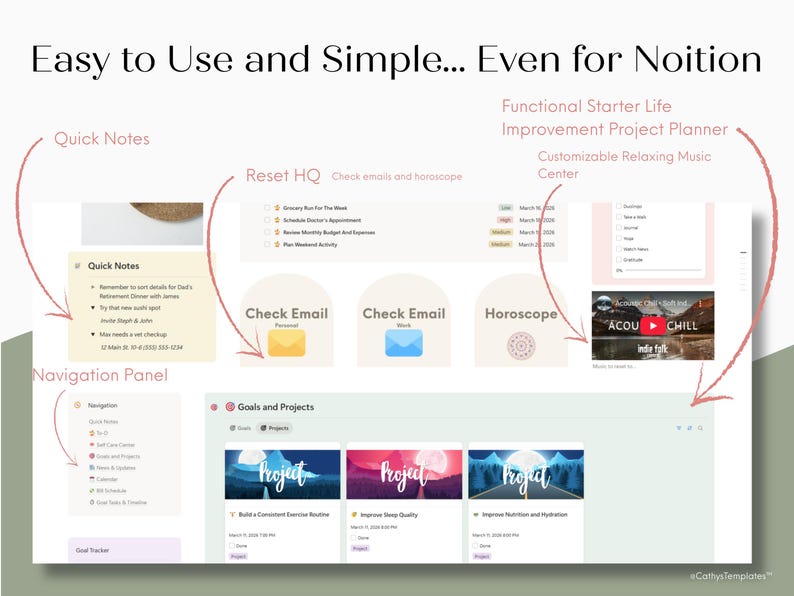

overwhelmed by notion? try this simple life dashboard for beginners. image shows dashboard panels for quick toggle notes, check email and horoscope buttons, projects and goals, habits, and to do tasks, and navigation


This dashboard combines all the elements you need to organize your life without overwhelming you. Each feature is designed to work together seamlessly, making it simple to track tasks, habits, and goals while staying aware of important updates.

Daily Task Management


  • Organize tasks into Today, This Week, and Next Week views
  • Prioritize important tasks without clutter
  • See what’s due at a glance and adjust as needed

Habit Tracking


  • Track daily habits to build consistency
  • Visual progress makes it easier to stay motivated
  • Integrates with your daily tasks for a complete picture
  • Noted to help with overall wellbeing 

Goals & Projects System


  • Break big goals into actionable projects and task
  • Timeline view shows how tasks connect to larger goals
  • Includes a working example: Improve Health & Energy in 6 Months

Calendar & Bills Integration
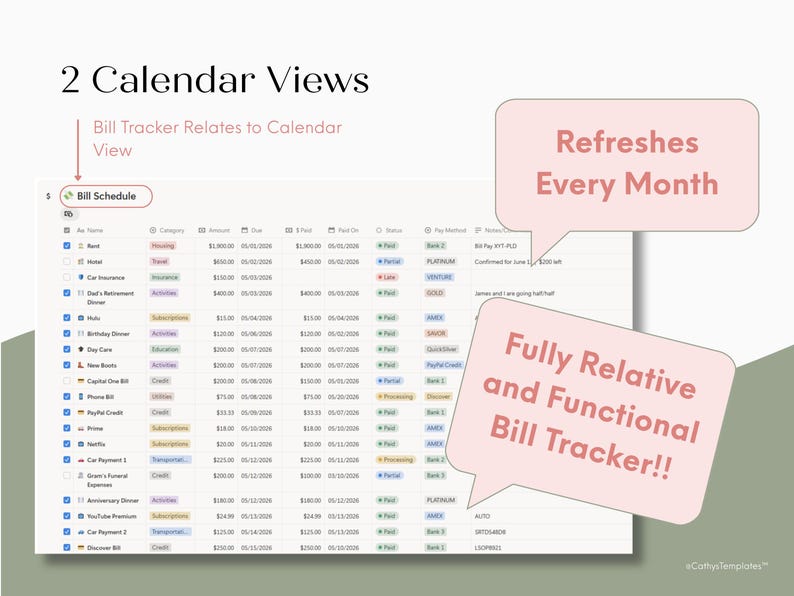

overwhelmed by notion? try this simple life dashboard for beginners. image shows a details bill tracker in notion with categories, due dates, date paid, payment method, and more

  • Calendar view automatically shows tasks and due dates
  • Separate bills calendar links to the bill tracker
  • Reduces the chance of missing deadlines or forgetting payments
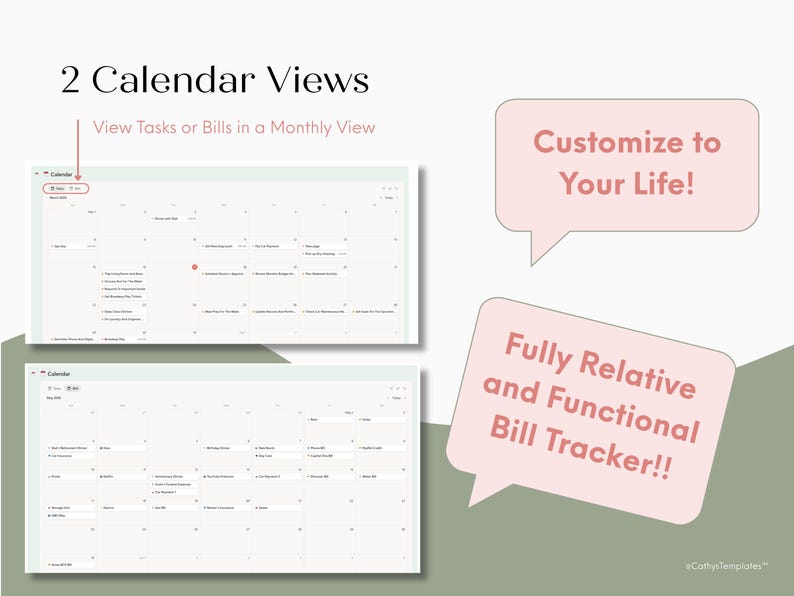
  • A calendar view for the bills tracker

overwhelmed by notion? try this simple life dashboard for beginners. image shows 2 calendar views for the to do section and the bill tracker section

News & Weekly Reset Section


  • Quickly check news, grocery deals, local events, and stock updates
  • Designed to support a Sunday planning ritual
  • Keeps all important weekly updates in one place

Quick Access & Lifestyle Features


  • Buttons for personal and work email and horoscope
  • Embedded acoustic chill playlist for relaxing while planning
  • Quick notes section captures ideas and reminders


A Real Example: A 6-Month Life Goal
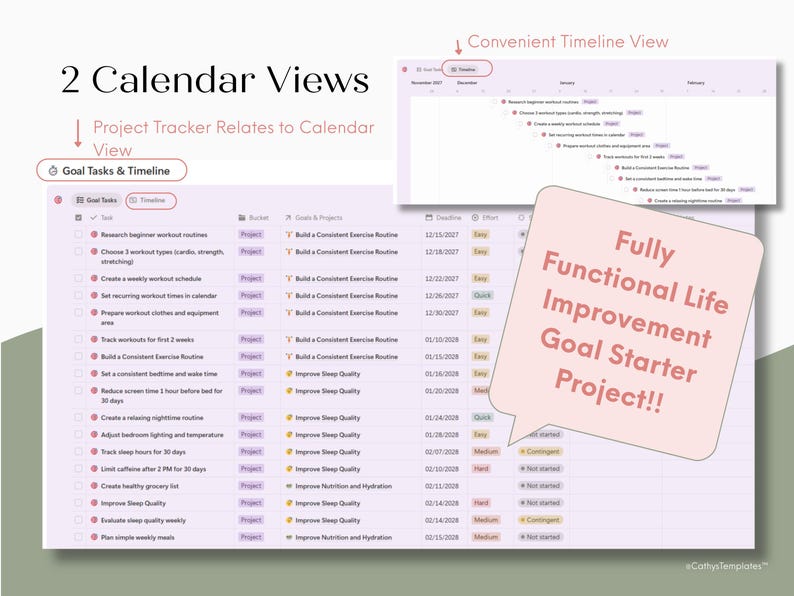

2 Calendar views for the goals and project tracker include a timeline view


One of the biggest challenges with Notion templates is that most of them show structure but not how to actually use it. That’s why this Notion dashboard includes a fully worked example goal: Improve Health & Energy in 6 Months.

This goal demonstrates how a large, abstract objective can be broken down into projects and actionable tasks that fit into your daily and weekly routine.

Here’s how it works:

Goal: Improve Health & Energy in 6 Months


All project tasks fit into the larger goal of improving health and nutrition in 6 months.

Project 1: Build a consistent exercise routine


  • Research beginner workouts
  • Create a weekly schedule
  • Set recurring times in the calendar

Project 2: Improve sleep quality


  • Set consistent bedtime and wake time
  • Reduce screen time before bed
  • Track sleep for two weeks

Project 3: Improve nutrition and hydration


  • Plan weekly meals
  • Prep healthy meals in advance
  • Track water intake

This approach is backed by research: The American Psychological Association notes that small, consistent lifestyle changes are the most effective way to improve overall health. By turning a broad goal into practical steps, this dashboard shows exactly how to make progress without feeling overwhelmed.

With the timeline view, you can see how each task contributes to the goal over the quarter, making it easy to stay accountable and measure progress visually.

How This Dashboard Fits Into Your Weekly Routine


One of the strengths of this dashboard is that it’s designed to work with your natural rhythm, rather than forcing you into a rigid system. By integrating tasks, habits, and goals with a simple weekly flow, it helps you stay organized while reducing decision fatigue.

Here’s a realistic use case:

  • Morning: Check your tasks for the day, glance at the habit tracker, and review any pressing emails.
  • Midday: Update completed tasks and mark habits as done. Use the acoustic chill playlist to stay focused while working or studying.
  • Evening: Add quick notes for ideas, plan for tomorrow, and do a brief review of what you accomplished.
  • Sunday: Conduct a weekly reset—check bills, review upcoming events, update your goals timeline, and scan the news & updates panel for what’s relevant in the week ahead.

This system makes it easy to stay on top of multiple areas of life without switching apps or pages. By having everything in one dashboard, you spend less time organizing and more time actually accomplishing what matters.

For productivity and habit-building, research from the American Psychological Association shows that consistent, small daily actions tied to a routine dramatically increase long-term success, which is exactly what this dashboard supports.

Who This Template Is For


This dashboard is designed for anyone who wants a clear, structured, and practical way to organize their life without spending hours learning and still being overwhelmed by Notion.

It’s especially helpful for:

  • Beginners to Notion – If you’ve downloaded and been overwhelmed by Notion, this template gives you a ready-to-use system.
  • Busy People – Keep track of tasks, bills, goals, and habits without juggling multiple apps or planners.
  • Goal-Oriented Users – The pre-built example shows how to break a broad goal into actionable projects and tasks.
  • Anyone Looking to Improve Wellness and Productivity – Integrates lifestyle, work, and self-care elements in one central hub.

Providing both structure and flexibility allows this dashboard to work for a wide range of users, from students and professionals to stay-at-home parents or anyone looking to simplify their routines.

Final Thoughts 


Notion is a powerful tool, but its flexibility can also make it intimidating. This Simple Life Dashboard for beginners solves that problem by giving you a ready-to-use, fully structured system that combines tasks, habits, goals, bills, and weekly planning in one place.

With this dashboard, you can:

  • Track daily tasks and habits without feeling overwhelmed
  • Plan and achieve meaningful goals with a clear roadmap
  • Stay on top of bills, news, and updates effortlessly
  • Build a weekly routine that supports productivity and wellbeing

If you’ve struggled to make Notion work for you—or if you’ve downloaded templates that felt complicated or incomplete—this dashboard is designed to get you started immediately. Use the included habits in the habit tracker, create your own, or use this habit list by Harvard University. 

Start organizing your life in minutes, build habits that stick, and take control of your productivity and wellness with a system that’s simple, practical, and effective.

Get the Dashboard Now


  • 0 Comments

Creating a Canva Newsletter Template Project Using Samsung Galaxy S23 Ultra

In this post, we're going over how I created a beautiful set of 12 monthly newsletter templates, an accompanying tutorial video, and a blog post using only my Samsung Galaxy S23 Ultra and Canva. 

Creating a Canva Newsletter Template Project Using Samsung Galaxy S23 Ultra. Image spread of monthly newsletter templates by Cathy's Templates
Image: Set of 12 Monthly Business Newsletters by Cathy's Templates


Materials and Items I Used:
  • Canva Pro Subscription (Template Creation & Video Editing)
  • Samsung Galaxy S23 Ultra (Video Creation)
  • YouTube (Video Upload)
Table of Contents:
  • What is Canva
  • Creating Newsletter Templates in Canva Using Samsung Galaxy S23 Ultra Instead of a Computer
  • Creating the Accompanying Video Using Canva and the S23 Ultra
  • Writing the Accompanying Blog Post Using the Samsung Galaxy S23 Ultra
  • Uploading the Final Video to Social Media
  • Why the Samsung Galaxy S23 Ultra is the Best Phone for Design Work

Creating a Canva Newsletter Template Project Using Samsung Galaxy S23 Ultra. Image of blue and white newsletter next to it on a phone.

What is Canva


If you’re not already familiar with Canva, it’s a powerful graphic design tool that can be used on a browser, phone, or via a desktop app. No design skills are needed to get started with Canva. Anyone can begin designing with a Free Canva account, which offers access to thousands of stock images, elements, and other design features for free. 

Heavy Canva users like myself will prefer to use the Canva Pro or Canva for Teams subscription option, which provides access to a powerful array of premium features, such as Background Remover, premium images and elements, audio, and more. I wrote a separate blog about Canva’s pricing models and what they offer.

Creating Newsletter Templates in Canva Using Samsung Galaxy S23 Ultra Instead of a Computer


Cathy’s Templates™ is a design studio where I create digital design templates and printables among other things, which I then sell on my Etsy shop. My design templates cover a wide range of digital marketing niches as well as personal use categories. 

When I began working with digital templates, I created them on my desktop computer, which was more convenient at the time as it had a larger screen.

I had the mobile Canva application, but it didn’t work as well on the older phone I was using. There was a lot of lag, extreme loading times, and the screen was just too small to really be able to see everything I was working on at a glance. Also, using a stylus was not as helpful, as most styli have bulbous tips that aren’t the best for precision design work.   

Fast forward a few years, and I finally upgraded my old phone to a Samsung Galaxy S23 Ultra, which I was sure would be THE phone to make all my design work and processes easier. I decided to test this out by seeing if I could create all aspects of one template design project using just the phone. 

I wanted to be able to create the following:

  • All 12 design templates 
  • Create a tutorial and accompanying video
  • Write an accompanying blog post
  • Upload the video to social media channels for dissemination 

Full Video (Scroll to continue blog)


H3>Process of Creating Templates Using Samsung Galaxy S23 Ultra


I began by opening a 600 x 1500 design in the Canva app and just got a vision for what I was going for. I set out to create a set of 12 monthly newsletters for businesses to use in their digital marketing initiatives, and I wanted to record myself making at least one of the templates. 

After the 6th template, I started recording. I went for a blue and white color scheme with a focus on “logistics” as the template style. Of course, these Canva templates can be customized to whatever the buyer wants, and they will quickly match the style and niche of your choice by just changing a few things around.

For example, I created a set of three different designs based on the original template I was working on. I changed the fonts, colors. Images, and added an element or two to really change it up. 

I came up with a pink and sienna feminine design, a funny and casual yellow design, and a more traditional green, gold, and white design. They are pictured below. 

Creating a Canva Newsletter Template Project Using Samsung Galaxy S23 Ultra. Side by Side customized versions of the original newsletter template by Cathy's Templates. A template in pink and blue hues, one in yellow and sienna hues, and one in dark green and beige hues.


As noted, I edited these designs right in the mobile Canva app using my phone as a way to highlight the versatility of the editable Canva templates by Cathy’s Templates™.  


Creating a Canva Newsletter Template Project Using Samsung Galaxy S23 Ultra. Side by side image of the original newsletter template by Cathy's Templates and a customized version. One is in dark green and beige hues with serif font in a traditional tome. The original is blue and white with sans serif font and modern style.

After creating the base design, which encompasses sectioning off the media portions, it was time to add in details. 

  1. I used the Neue Einstellung font for my text and alternated text colors based on where they were located in the design. 
  2. Then, I popped in some sample Lorem Ipsum text. 
  3. After that, I searched for images in Canva’s photo library to make the design come to life.

Canva’s element panel allows you to filter your searches using several criteria. For this, I filtered photos by color, opting for a dark navy blue. The results were the final images you see in the template’s 5 image box frames.

Frames are Canva elements that allow you to pop in any image and the image will conform to the size specifications of the frames. When using square frames, I like to use the singular grid option, which allows me to resize the frame to any dimension instead of having to stick to a predetermined aspect ratio.

Creating the Accompanying Video Using Canva and the S23 Ultra


Editing for the accompanying video to this blog occurred in two steps. First, I created the original video using the phone. Then, I used the Canva mobile app to edit the video and trim it down. 

1. Creating the Original Design Video on the S23 Ultra


The accompanying video for this blog was created using the Screen Record feature on my Samsung Galaxy S23 Ultra. After enabling the record option, I opened the Canva app and just began creating the design for my template using the S Pen. 

I didn’t use the “record audio and screen” option, as I wanted to focus on the design first and work on the voiceover later. 

2. Editing the Video in the Canva Mobile App


After I was done designing, I uploaded the video to Canva and began editing it. 

The original video is about 25 minutes long and covers only the creation of 1 template. But using Canva’s video editing tools, I was able to trim that down to just over 6 minutes for the design portion. I added a few more minutes of time for some voiceover extras, which brought the video to just about 8 minutes long. 

3. Using Samsung Voice Recorder to Record the Voiceover


After the video was trimmed down to the size I wanted, I used the Samsung Voice Recorder app to record my voiceover for this video. Then, I used the Split Screen feature on the Samsung Galaxy S23 Ultra to sync my commentary to the finished video, which was simultaneously replaying in the second Canva window. 

Tip: The Voice Recorder app by Samsung does not come pre-installed on some devices, but it can be downloaded from the Google Play Store or the Samsung App Store and used like a native app. 


Creating a Canva Newsletter Template Project Using Samsung Galaxy S23 Ultra. Image: Voice Recorder and Canva in Split Screen Mode on the S23 Ultra
Image: Voice Recorder and Canva in Split Screen Mode on the S23 Ultra

Writing the Accompanying Blog Post Using the Samsung Galaxy S23 Ultra


The second to last thing I had to do was write the accompanying blog post using just the S23 Ultra. I wrote my post using my preferred word processor app, and then I copied and pasted the text into my CMS app. Then, I filled in all the metadata, uploaded my photos, and screenshots, and published the post. 

Uploading the Final Video to Social Media


The final step to this project was to upload the edited video to social media. I used apps like YouTube to upload and host, and I filled in all the accompanying descriptions, tags, and data for the video. I also used the YouTube Create app to edit Shorts and Reel version of the longer video.

Why the Samsung Galaxy S23 Ultra is the Best Phone for Work


From start to finish, I used the Samsung Galaxy S23 Ultra to create all aspects of this project. As I planned, I was able to:

  • Create 12 design templates 
  • Create and edit a tutorial and accompanying video
  • Write an accompanying blog post
  • Upload the video to social media channels for dissemination 

Processing Power and Battery Life


I’ve never been able to do this on a phone before, partly because the ones I was working with didn’t have the processing power to keep up with the battery and memory loss associated with working on complex and powerful applications like Canva in tandem with other battery-draining applications and processes. 

With the S23 Ultra, I was able to complete all aspects of this project in just 4 days, and on two and a half charges. The only reason I had to charge the phone again was because I was using it recreationally during my breaks. 

Screen Size is Convenient


The Samsung Galaxy S23 Ultra has a 6.8-inch screen, which means I was able to see the entire template project within my screen at a glance. Maneuver around the design was seamless, unlike having to zoom in and pan across and vertically the whole time as is necessary when using smaller screens.

The S Pen Delivers Precision 


The S Pen has a super precision tip. This allows you to intricately resize, move, swap, and manipulate a design. That’s sometimes impossible with a regular stylus. The S23 Ultra also has a hover feature, which highlights what you’re hovering over with your S Pen using a small white circle or border. This makes it easier for viewers to keep track of what I was doing in real-time within screen-recorded videos. 

Overall, this phone is a powerful machine. In this case, it completely replaced my computer for an entire project. Would I throw my computer out now? Obviously not, but it gives me peace of mind to know that I can work on any project independently away from my computer, and the device will be able to handle it. It will also be convenient and easy to do so. 

This isn’t a sponsored post. It began as just an idea of a new way to challenge myself and my available tools. I wasn’t expecting to be able to do everything using just a phone, but was extremely satisfied with the results. For that reason, I would recommend the Samsung Galaxy S23 Ultra to anyone looking for an alternative to large tablets and laptops for on-the-go work. 

The 12 Monthly Newsletter Template pack in this post is available on my Etsy shop: Etsy.com/Shop/CathysTemplates. 

This Template Design is: "Notrim Logistics 12 Monthly Newsletter Templates" by ©Cathy's Templates™ 2023 (@CathysTemplates). This design is not for resale or commercial use. 

Creating a Canva Newsletter Template Project Using Samsung Galaxy S23 Ultra. Image spread of 12 monthly newsletter templates by Cathy's Templates

You may also be interested in the following listings from the Cathy's Templates™ Etsy shop:
  • 6-Page HOA Newsletter & Welcome Packet Template (Watch Video)
  • 4-Page Company Newsletter Template Blue
  • 4-Page Company Newsletter Template (Pink)
  • 6-Page Community Newsletter Template

Read More:

  • Testing G2 Limited Edition Harmony Pens on Astrobrights 28lb Paper
  • Designing Notebook Sheets in Canva for Beginners
  • How to Create Impressive Presentations
  • Building and Internal Company Newsletter & Content Ideas

From Around the Web:

  • Ravenarch Press: How to Change the Font of a Whole Document in Google Docs
  • Author Freya Larsen: Using a Blog Post Planner to Manage Content

 Follow us everywhere @CathysTemplates 

Twitter, Facebook, Instagram, Pinterest, Tumblr, TikTok

Like our shop on Etsy! 

Like our shop on Gumroad!

Consider supporting Cathy's Templates™ on Patreon. 

Select tiers get freebies and discounts on our templates. 

©Cathy's Templates™ (@CathysTemplates)


This site uses affiliate links, we may earn a commission from purchases made through these links at no extra cost to you, which helps support this site. 


  • 0 Comments
Back to School Must-Haves Printables, Pens, and Planners - Cathy's Templates

Back to school must-have printables, pens and planners. 


It's that time of the year again when we're gathering all our supplies for the return to school. A new trend on track is now printing your own notebook pages, with exactly the right content on them to make studying and taking notes easier than using a traditional notebook.

In this blog post, I'll share my go-to printable note pages from Cathy's Templates and a few must-have supplies for the coming school year.

Table of Contents
  • School Planner by Coole School ™
  • Printable School/Study Note Sheets
    • Printable University Note Pages Gray
    • Printable University Note Pages Multicolor
  • Best Writing Instruments for School
  • Highlighters (Sharpie, BIC, and Zebra)
  • Fineliners That Won't Bleed Through Paper

School Planner by Coole School™


I usually make my own planners using my own templates and printables which work best for me. But when it comes to school planners for children, I did shop around. I looked through tens of different school planners available and found one in particular that had everything I was looking for.

Essentially I set out to look for a planner that had the following features:
  • Spiral bound
  • Included individual monthly calendars for reference
  • Used a weekly format
  • Vertical matrix for the days of the week
  • Horizontal matrix for subjects
  • Space for Saturday and Sunday
In all, I wasn't just looking for a planner to jot down course schedules with times and days for when to attend classes. I was looking for a comprehensive planner to jot down required work for, projects, essays, reports, lessons, and all other work where they could be categorized by due dates and class.

I found a school planner by Coole School™. It checked all the boxes and even went above and beyond by offering space for parents to sign off on work done each day and jot down any after-school activities planned. There's even an area to mark off student conduct that day, whether exemplary, satisfactory, or unsatisfactory. Also included are dedicated spaces to checkmark every assignment completed.

Best School Planner by Coole School - Cathy's Templates

 The back of the planner also includes different reference information for the following subjects:
  • Math: Multiplication table, a ruler for centimeters in inches, mathematical equations and references
  • Science: The periodic table of elements and skeletal anatomy
  • Social Studies: A list of presidents of the United States of America and their terms served up to the current president, the preamble to the constitution, the United States Government Branches
  • Language Arts: References for punctuation, the parts of speech, homophones, letter and essay writing
The front of the planner features maps, study skills, and usage manual along with other handy information. There is even a grade book and hall pass tables at the back of the book. The hall pass can be applied to another use if necessary. The horizontal matrix lists the subjects Math, Science, Social Studies, and Language Arts, which are the general core courses. There is space to write in electives in the additional three spaces. I’d highly recommend this planner for homeschooled students in middle and high school.

Printable School/Study Note Sheets

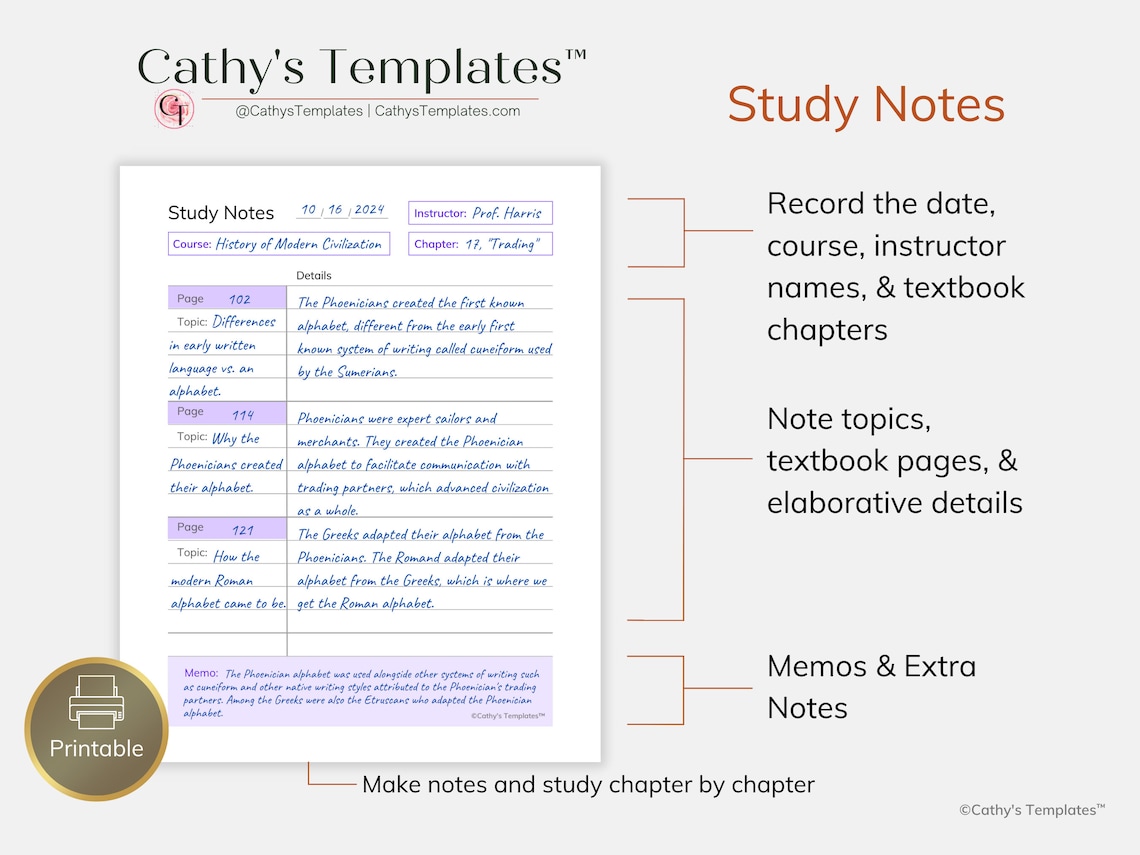
I created printable school note sheets for my Etsy shop because I constantly found myself needing to organize my notes in a consistent way. I found that using a printable would be much easier than constantly labeling my pages with what my notes were for.

Printable University Note Pages Gray

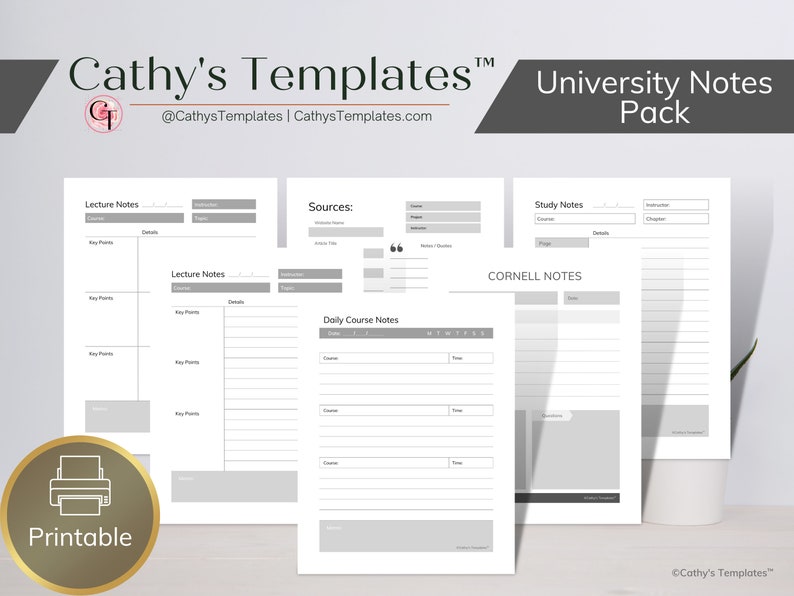
The Principal University Note Pages in Gray are a wonderful option for those looking for a neutral set of printable note pages for use in an 8.5 by 11 binder. This allows you to create your own planner for school, and they work great for middle school through to university.

Printable university notes, college notes, study notes - Cathy's Templates

Printable University Note Pages Colors


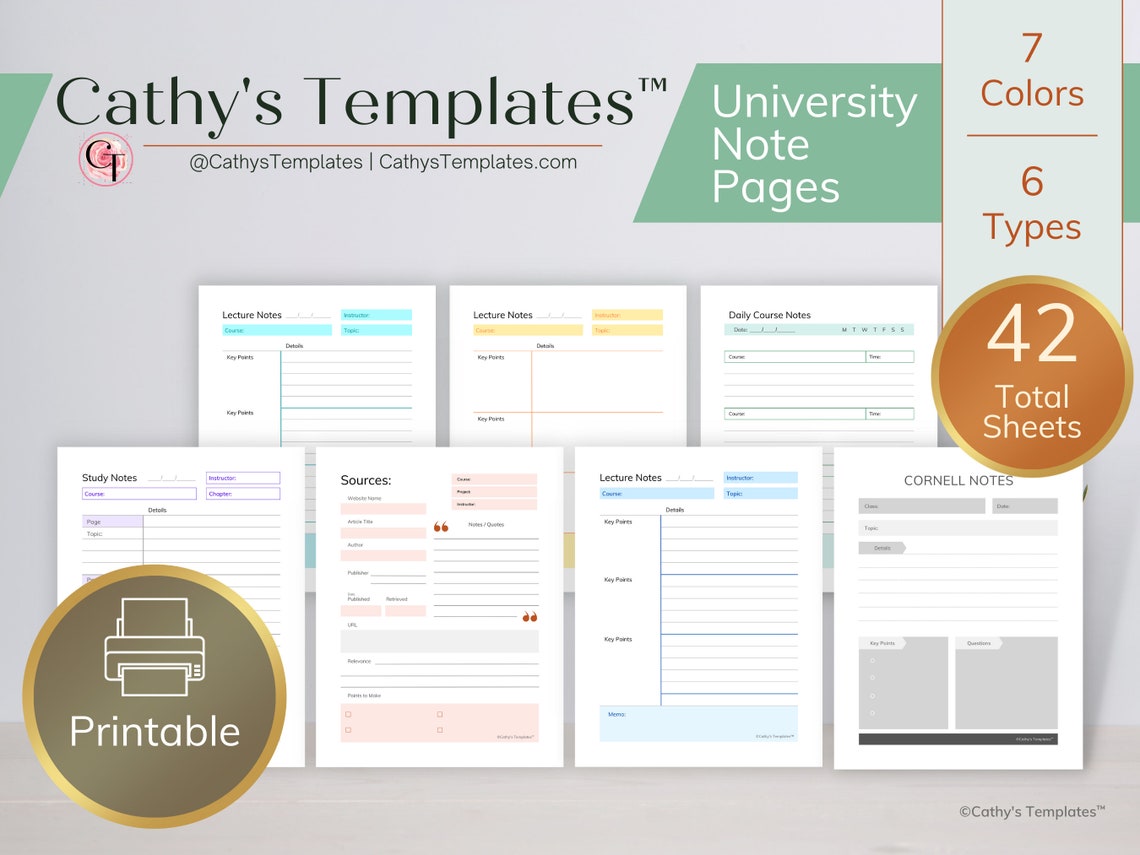
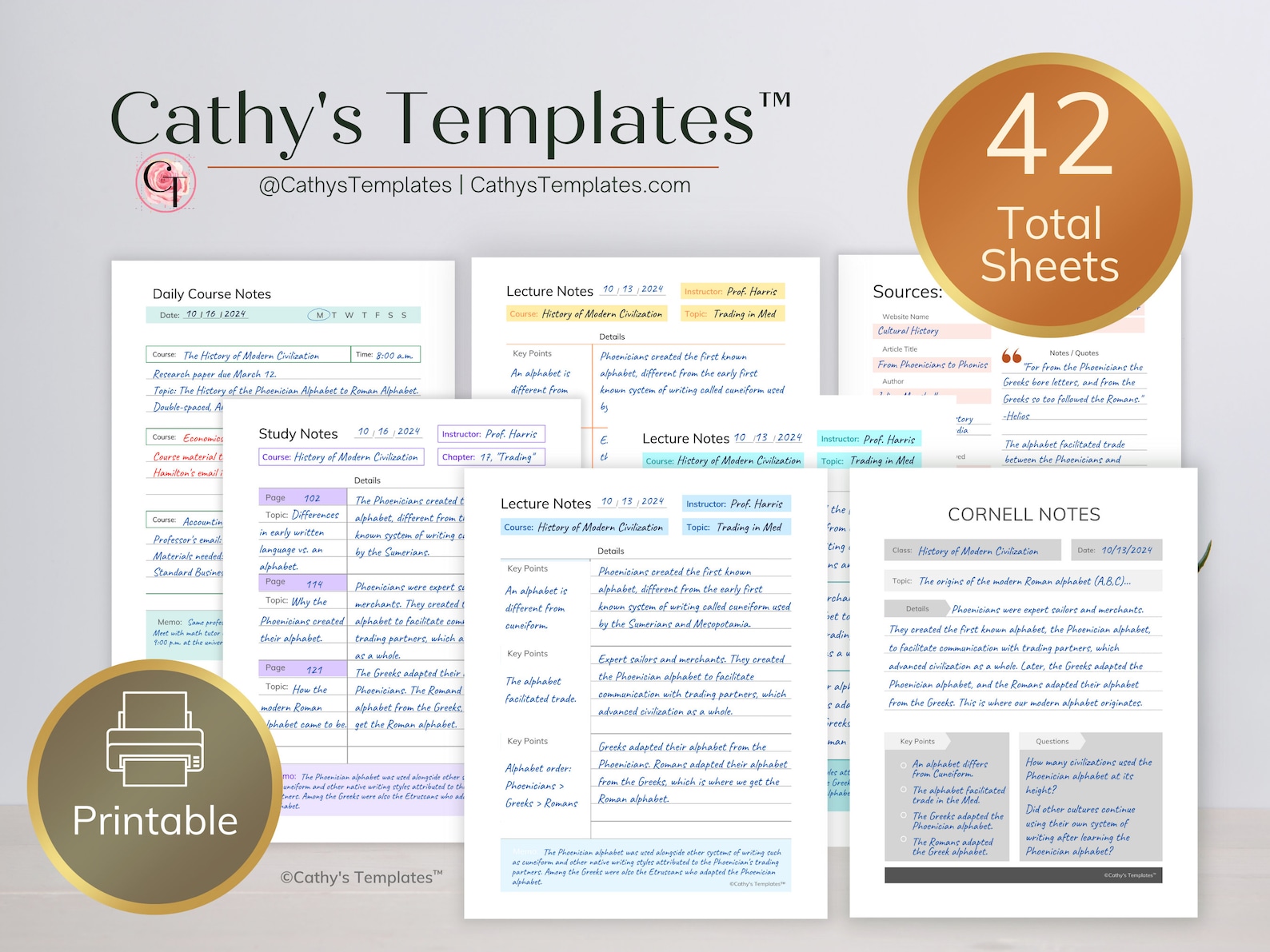
The Printable University Note Pages in Colors is an alternative to the neutral gray printable university note pages, and they offer more customizable planner options. This pack includes all six note-taking sheets from the gray pack in six different colors, so a total of 42 different sheets. 

Printable university notes, college notes, study notes - Cathy's Templates

Printable Cornell Note Sheets


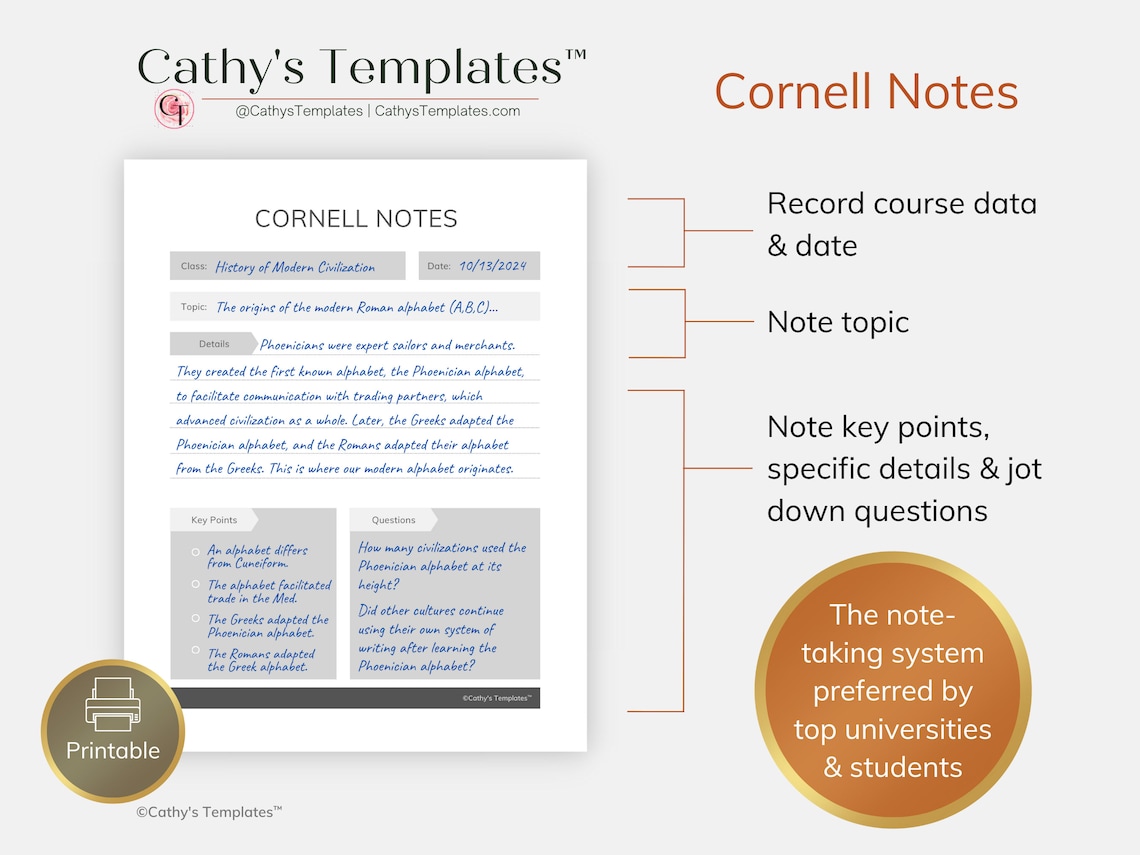
These printable note pages feature Cornell note sheets, which is the preferred note-taking system by universities and colleges for compartmentalized note-taking. Write out the course, topic, details, key points, and questions on these sheets for anything you're taking notes on.

Printable university notes, college notes, study notes - Cathy's Templates

Printable Study Note Sheets


The printable study note pages allow you to compartmentalize what you've read, with space available to jot down the chapters and pages where you read it, the topic, and its relevance to your work, essay, or report. As with all the pages, there is space to include which class it's for, the instructor, and additional notes.

Printable university notes, college notes, study notes - Cathy's Templates

Printable Course Note Sheets


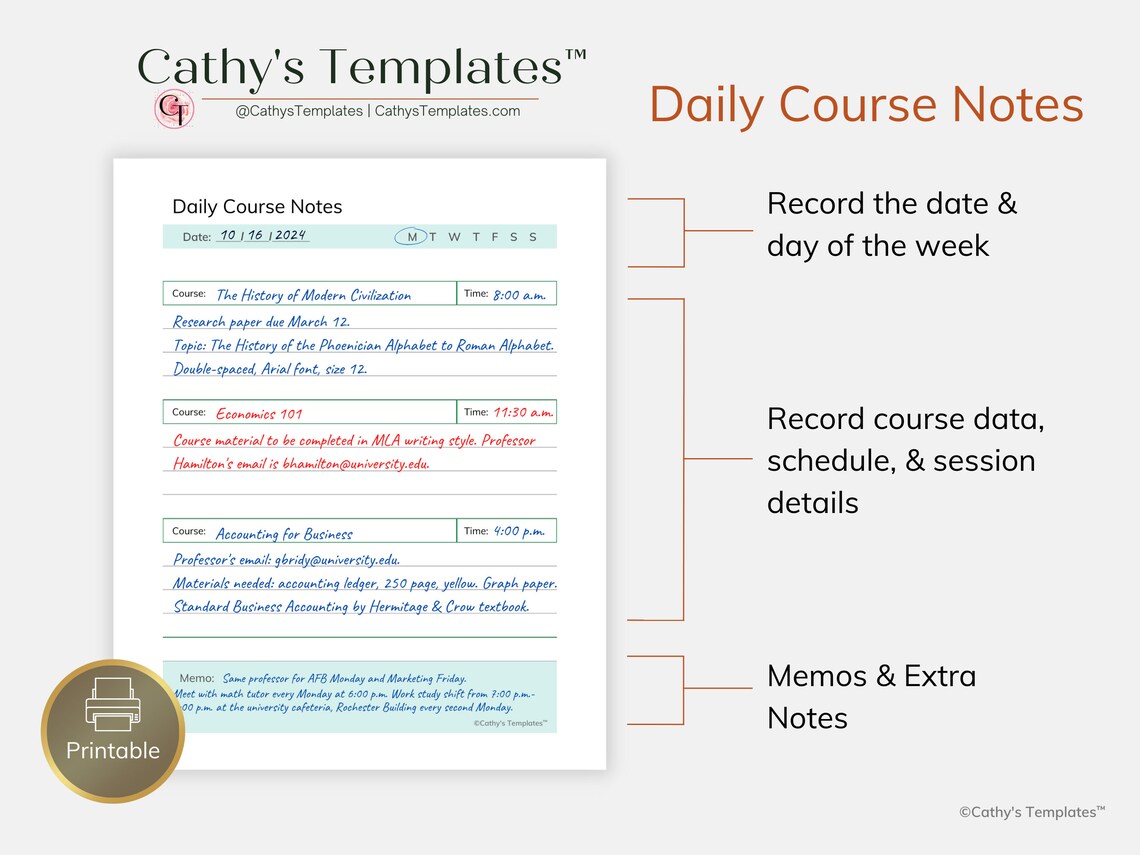
Course note sheets are designed to offer you a neat space to write down important information about your courses, including your instructor's name, contact information, syllabi information, materials needed, required readings, and more. I found this information especially helpful for homeschooling parents and students as well as university students.

Printable university notes, college notes, study notes - Cathy's Templates

Printable Citation Planner


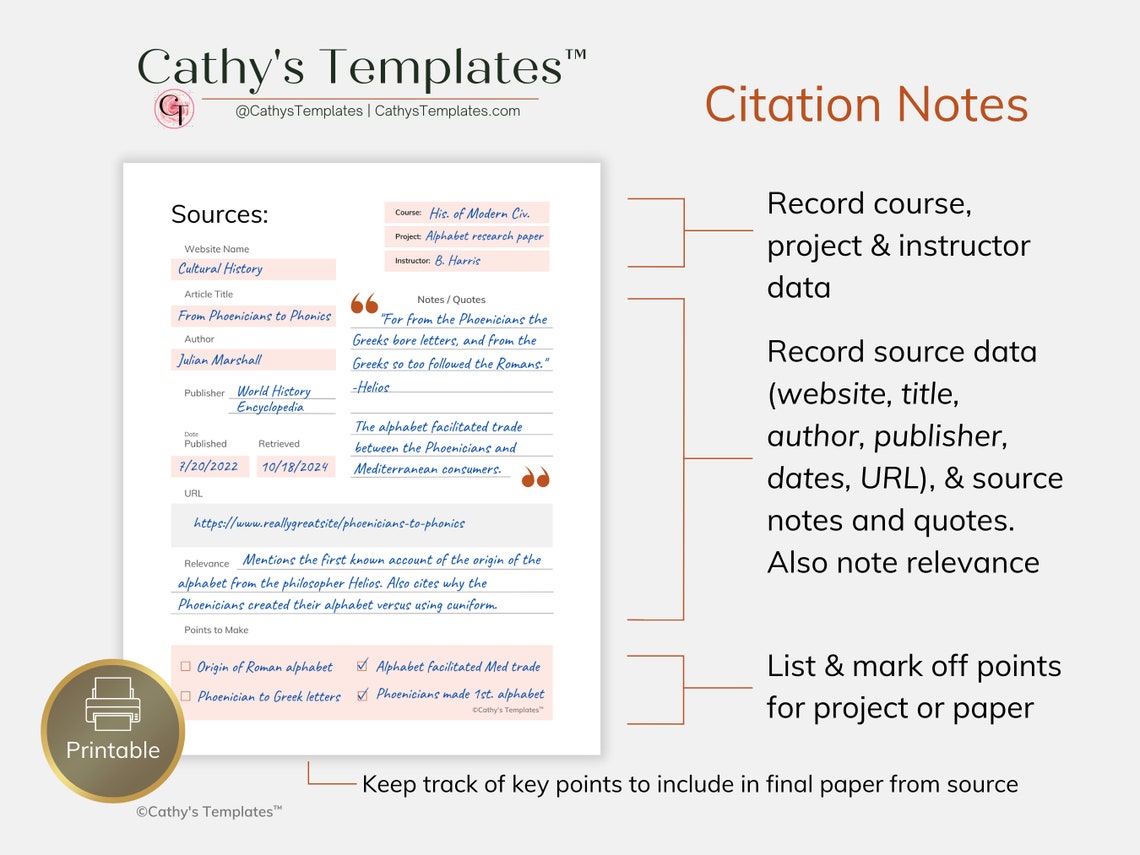
Creating citations can be difficult, and you don't always have a citation tool on hand or a reference book. The source citation note sheet is designed to allow you to jot down all the important information for sources you've used in essays or reports in an at-a-glance manner. This is useful for taking with you to a library or jotting down source information as you gather it online. Later, when you have more time, you can reference your citation manual style book or tool and input the information you wrote down for each label. By far, this is one of the most useful printables I have ever created.

Printable citation planner university notes, college notes, study notes - Cathy's Templates

The citation note sheets allow you to jot down the course, instructor, and project for which you are taking citation notes. Furthermore, there is space to write down the name of the website, publisher, article title, and author. You can also write out the date it was published and the date you retrieved it, the URL, and your selected notes and quotes. 

At the bottom, you can write out the relevance to your report to ensure you're only gathering information that is pertinent to your project and plan out the points you would like to make in your report or essay. I've also included checkboxes to mark them off as you make those points, so you don't forget anything in your final report. 

Printable Lecture Notes


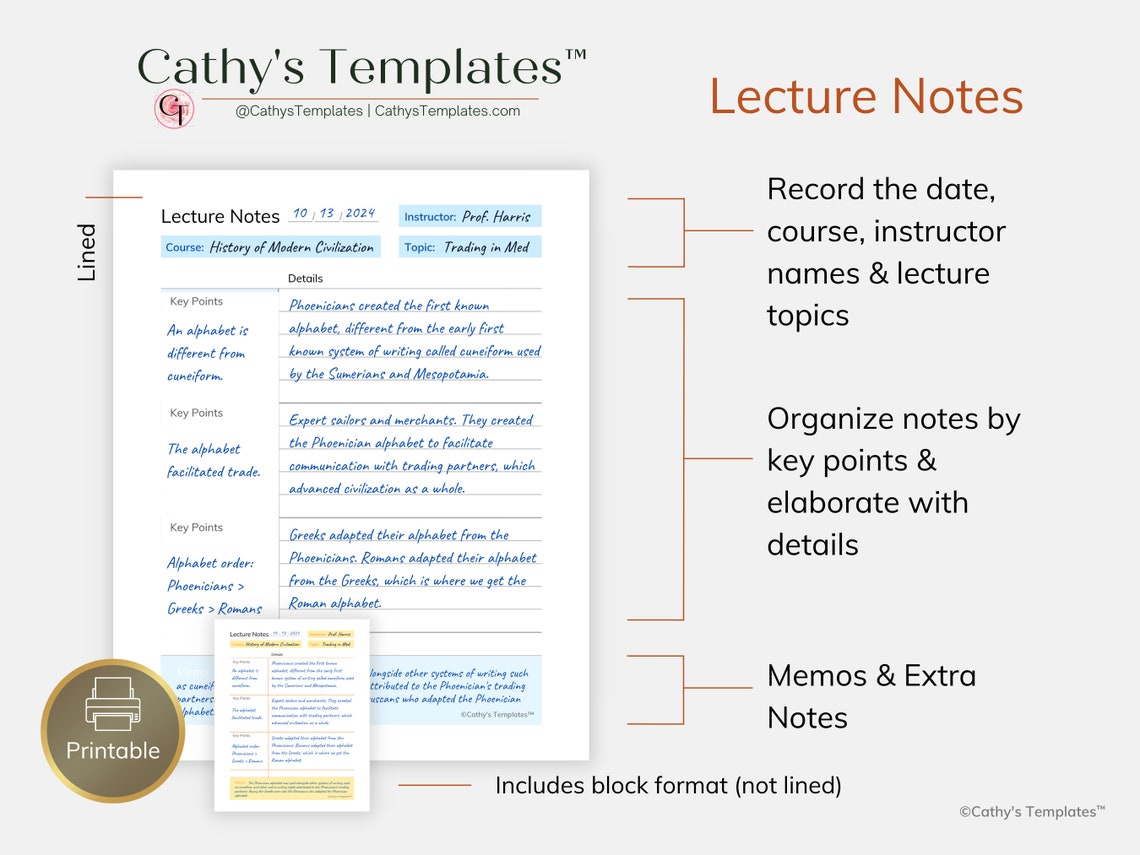
Also included are two different versions of lecture notes. The block version utilizes an unlined format for free writing your notes within each section. The lined version keeps notes organized and neat. There is space for jotting down the topics of lectures and important details for each topic covered. 

Printable university notes, college notes, study notes - Cathy's Templates

Best Gel Pens for School

Pilot Frixion Gel Pens (The Official S.T.E.M. Pen)

Another product from Pilot that I would absolutely recommend to anyone needing to take notes with accuracy is the Pilot Frixion gel pens. These gel pens are touted as the official S.T.E.M pens because they feature thermo erasable ink. These pens come in a variety of colors, similar to the Pilot G2 collections. They write smoothly, and I would even say they glide across paper.

The thermal erasable ink is 100% heat-based, so ink erases cleanly without destroying the paper. Each pen comes with a rubber-like eraser either on the cap, or if it's a clicker pen, on the back. Applying friction to the paper heats up the area where the ink has been applied, causing it to erase invisibly.

I found that the Pilot Frixion Color Sticks are best for younger children, including elementary and middle school students because they come in fun colors and feature thinner, simple barrels comparable to a pencil’s width. These also fit nicely in pouches. 

Best gel Pens for school. Pilot frixion color sticks. - Cathy's Templates

For all other uses, I find that the Pilot Frixion Synergy and the Pilot Friction Clicker Erasable Gel Pens pens offer a more professional writing instrument with precision tips and the ability to erase mistakes. 

Best gel pens for school. Pilot frixion synergy. - Cathy's Templates Best gel Pens for school. Pilot frixion clicker pens. - Cathy's Templates

This makes using a pen for taking notes in applications like science and math more accessible and efficient, as they offer the ability to color code notes and erase mistakes cleanly. 

Pilot G2 Gel Pens

Pilot G2 pens are my go-to gel pens for everyday writing. The array of colors makes categorizing and organizing notes and planners effortless. The wider barrel makes taking notes for a long period of time comfortable, and these pens wright smoothly on almost any paper surface. 

I recently tested and reviewed the Pilot G2 Limited Edition Harmony Collection pens, and found that they performed wonderfully for all of my printables on 24 lb and 28 lb Astrobrights paper. I also own Pilot G2 pens in the Neon and Brights collection, and my most-used G2 is the Flagship Pilot G2 Black pen. 

Best gel pens for school. Pilot g2 limited edition harmony pens. - Cathy's Templates

I consider these pens must-have writing instruments for school, because they make keeping track of individual notes easier, and categorizing notes by class, subject, and type makes planning out your day in a planner much more efficient. 

I've tested these pens out on both higher-end planners, inexpensive school planners with thinner paper, and my go-to 24-lb and 28-lb Astrobrights paper. In every test, Pilot G2 gel pens prove that they do not bleed through planner pages, notebook paper, general 20-lb copy paper, 24-lb or 28-lb paper.

Back to School Must Haves. Pilot G2 Bleed Test - Cathy's Templates

If you haven't noticed yet, I am a huge Pilot user. 

Best Highlighters for School (Sharpie, BIC, and Zebra)

While I find that you can't go wrong with a BIC fluorescent Brite Liner highlighter, because of its superior no-bleed formula and lighter pigment. But I find that Sharpie highlighter color options are more widely available than BIC's color lineup.  

Sharpie highlighters come in a variety of collections. The fluorescent Sharpie highlighter colors include yellow, blue, orange, pink, and sometimes purple. But Sharpie also has a 12-pk pastel highlighter collection that includes 6 fluorescent colors and 6 pastel colors in the same hues, which are pink, purple, orange, yellow, green, and blue. 

BIC also has a competing Marking Grip highlighter collection in the same hues. But I've only ever come across them online. So they aren't as reliable to find. 

I found that using Sharpie highlighters to color-code notes and planner pages is more efficient than using BIC highlighters, which are usually only found in 5 fluorescent colors (blue, yellow, orange, pink, and green).

Sharpie S Note Markers vs. Zebra Midliners


Now, Sharpie does have their new midliner collection called the Sharpie S Note markers. These are a cross between a highlighter and a marker and come in a complete total of 36 pastel colors. Their biggest competitor at the moment is the Zebra midliner, which comes in 30 pastel colors. Both of these take highlighters for note-taking to outer space, with the amount of categorizing you can do. 

However, I have found that the Sharpie S Note highlighters are highly pigmented, which makes reading through them a bit difficult when using darker colors. This deep pigmentation also means that they will bleed through most paper, even though their package says they are no-bleed highlighters.

So, if you're using highlighters for general note-taking purposes, and you're going to be using general notebook paper, or your average 20-lb copy paper, I would say go with the Sharpie pastel collection for in-depth organization or the BIC fluorescent collection for general highlighting. 

If you plan on using highlighters as an art medium, then I would go with the Sharpie S Note highlighters, or the tried and true Zebra midliners. 

Winner: Sharpie Highlighters (12 pk Pastel Collection)

Fineliners That Won't Bleed Through Paper


For bullet journaling and planners, most people fall back on a no-bleed fineliner, which is a felt tip marker designed to offer the color options and pigmentation of markers but in a very fine tip and a no-bleed formula. 

There are a lot of fineliners out there, but I have found that there are three specific brands that offer fineliners that genuinely do not bleed through paper, and I have tried them all.

One of the most prevalent problems I have seen are shoppers trying to find an alternative to more expensive fineliners and finding companies that promise no-bleed fineliners. These usually turn out to be just thin versions of regular markers, or inferior quality fineliners that just bleed straight through any paper you use it on, or at least the general 20-lb paper or notebook paper that most people use. 

I've even tried most fineliners on thinner and thicker paper, including 24 lb, 28 lb, and cardstock. In every single test, I came back to the same three brands.

Sharpie Felt Tip Pens

Sharpie Felt Tip Pens began years ago and were first advertised as fine tip felt pens instead of fineliners. And years ago they did act more like pens than they did fineliners, which is why I loved them so much. But nowadays the Sharpie Felt Tip Pens you find on the market behave more like fineliners in that their ink is way more pigmented, and the felt tip is rougher on the paper.

Fineliners That Won't Bleed Through Paper. sharpie felt tip pens. - Cathy's Templates

I'm not necessarily in love with the way these pens are currently manufactured, but I can say that they are still 100% no-bleed pens, which makes using them for planners and taking color-coded notes awesome. They feature a thinner barrel than most fineliners because they have a pen-like structure. I would recommend these pens to anyone who needs a fineliner that functions more like a pen.

I have noticed that Sharpie tends market these as art pens now, so I don't believe they'll ever go back to the way they used to be. The older Sharpie Felt Tip Pens glided over the page like butter, and they had a bright, yet light, pigmentation. Now they are rougher on the page, as I mentioned, and feature darker pigmentation. Still, I have all 24 colors in my collection. 

Papermate Flair Felt Tip Pens

Papermate Flair felt tip pens were my introduction to fineliners years ago. They are the go-to fineliner for most individuals who use fineliners. I have never found a problem with them bleeding through any of the paper that I use. 

Fineliners That Won't Bleed Through Paper. papermate felt tip pens. - Cathy's Templates

I have found a few have dried up on me faster than they should have, but that comes down to how you store your pens. Fineliners are felt tip pens, which means they need to be stored upside down. I have a tendency to store my pens upright.

All-in-all Papermate Flair felt tip pens are writing instruments that I would recommend to anyone bullet journaling or individuals who color-code planners such as teachers, professors, administrators, and just anyone in general who needs to color-code their planner.

Pilot Frixion Fineliner Erasable Marker Pens

Going back to Pilot collections, the Pilot Frixion Fineliner Erasable Marker is a Pilot's S.T.E.M.-friendly alternative to a fineliner. Almost all fine liners on the market are not erasable, and this means that most people in S.T.E.M. professions have had to settle for using pens, even for applications where a fineliner would be more efficient because they draw broader lines and have a completely different makeup.

Fineliners That Won't Bleed Through Paper. Pilot Frixion fineliner erasable markers felt tip pens. - Cathy's Templates

Pilot's Frixion Fineliners are erasable just like their color sticks and clicker pens. The ink is also thermal reactive, so it becomes invisible with the application of heat through friction rather than relying on traditional rubber-based erasers that eat through the paper.

I would recommend Pilot Frixion Fineliner Erasable Markers for individuals who would like the concept of bullet journaling, which features customizing notes and planner pages, for applications in high-accuracy careers and activities centered around niches like engineering, the sciences, and math.

When it comes to fineliner markers you can't go wrong with Sharpie Felt Tip Pens, Paper Mate Flair felt tip markers, and Frixion Fineliner Erasable Markers. 


Read More:

  • Testing G2 Limited Edition Harmony Pens on Astrobrights 28lb Paper
  • Designing Notebook Sheets in Canva for Beginners
  • How to Create Impressive Presentations
  • Building and Internal Company Newsletter & Content Ideas
From Around the Web:
  • Ravenarch Press: How to Change the Font of a Whole Document in Google Docs
  • Author Freya Larsen: Using a Blog Post Planner to Manage Content


 Follow us everywhere @CathysTemplates 

Twitter, Facebook, Instagram, Pinterest, Tumblr, TikTok

Like our shop on Etsy! 

Like our shop on Gumroad!

Consider supporting Cathy's Templates™ on Patreon. 

Select tiers get freebies and discounts on our templates. 

©Cathy's Templates™ (@CathysTemplates)


This site uses affiliate links. We earn a commission from any purchases made through these links at no extra cost to you, which helps support this site. 


  • 0 Comments
Older Posts Home

Search This Blog

Latest Design

Affiliate Disclosure

As an Amazon Associate, I/we earn from qualifying purchases made through affiliate links at no extra cost to you, which helps support this site.

Branding & Design Templates

a


Cathy's Templates™

"Easy templates and designs so you can get back to building your business.”


Follow Us

  • etsy
  • Instagram
  • twitter
  • facebook
  • pinterest
  • patreon
  • youtube
  • tumblr

Featured

Testing G2 Limited Edition Harmony Pens on Astrobrights 28lb Paper

recent posts

Labels

Canva Marketing Kits Media Kits News Newsletter Templates Notion Templates Presentations Templates Printables Real Estate Templates Tips Tutorials Videos YouTube

Blog Archive

Report Abuse

Ⓒ Cathy's Templates™ 2022. All rights reserved.. Powered by Blogger.

instagram

Template Created By :Blogger Templates | ThemeXpose . All Rights Reserved.

Back to top